This guide introduces the KatzenQT chat client. With KatzenQT you can securely share one-to-one and group messages with other KatzenQT users. KatzenQT relies on Katzenpost, an advanced mixnet system designed for people who have something to say, but who also value their anonymity. Anonymity is not the same thing as encryption, which protects the content of communication over the Internet. Anonymity is about protecting people.
For technical information about how Katzenpost and mixnets in general work, see Learn Mix Networks for Great Good and Katzenpost Documentation. To learn more about why Katzenpost works as it does, see Frequently asked questions .
The KatzenQT client is available as Python code on GitHub. To run it, you need a computer that supports the Linux operating system. (We have tested KatzenQT on Debian GNU/Linux 13 and Ubuntu 25.04 and 25.10.)
Prerequisites
Ensure that sudo is properly configured for your normal user. Ubuntu systems generally do this by default. Debian systems do not. For more information, see sudo in the Debian wiki.
Add ~/.local/bin/ to your normal user $PATH and open a new terminal to perform the installation.
Intall pip and uv.
To install KatzenQT using make targets
From the root directory of the KatzenQT repository, complete the following procedure as a normal user.
Run make dep.
Run make run.
Run make to display a full list of developer options.
Install required software packages
To prepare to access and build the KatzenQT code, run the following commands to be sure that you have the tools installed. You must have root privileges to do this.
#apt update#apt install git python3 make python3-venvInstall the Katzenpost Git repository
Katzenpost is a free and open source software project dedicated to researching and developing mix network protocols.
Open a virtual terminal and clone the Katzenpost repository at https://github.com/katzenpost/namenlos as follows.
~$ git clone https://github.com/katzenpost/katzenpost.gitInstall the KatzenQT Git repository
Open a virtual terminal and clone the KatzenQT code repository at https://github.com/katzenpost/katzenqt as follows.
~$git clone https://github.com/katzenpost/katzenqt.git
Build client daemon and install configuration files
To connect to the mix network, KatzenQT requires the Katzenpost multiplexing client daemon to be present and configured. Complete the following steps to provide the daemon binary and the required configuration files.
In the Katzenpost repository, build the daemon as follows.
~/katzenpost/cmd/kpclientd$go build -vCopy the newly built kpclientd binary to the KatzenQT repository as follows:
~/katzenpost/cmd/kpclientd$cp kpclientd ~/katzenqt/Copy the configuration file for kpclientd from the Namenlos repository to the KatzenQT repository as follows.
~/namenlos/configs/$cp client2.toml ~/katzenqt/Copy the configuration file for the thin-client shim from the Namenlos repository to the KatzenQT repository as follows.
~/namenlos/configs/$cp thinclient.toml ~/katzenqt/
![[Note]](file:/home/usr/local/Oxygen_XML_Editor_28/frameworks/docbook/css/img/note.png)
Note This action replaces the thinclient.toml file that is already present in the repository. The default file is not configured to use the Namenlos network.
Start the client daemon
One (and only one) instance of kpclientd must be running on your system before you start KatzenQT. Start it with following command:
~/katzenqt$././kpclientd -c config/client2.tomlThe terminal from which you ran kpclientd must remain open during operation, and provides mix-network access logging.
Build and start KatzenQT
In another terminal, in the root directory of the KatzenQT repository, complete the following steps.
Check out the currently required development branch of the repository as follows.
~/katzenqt$git checkout message_box_index_length_validationCreate a virtual Python environment, load additional required software, and start KatzenQT using the following commands.
~/katzenqt$python3 -m venv myvenv~/katzenqt$source myvenv/bin/activate~/katzenqt$pip install --upgrade pip~/katzenqt$pip install 'git+https://github.com/katzenpost/thin_client@487d2b8e46440abba5bb4db95a168353de2d45d9'~/katzenqt$pip install -e .~/katzenqt$makeThis terminal must remain open while running KatzenQT. The terminal displays information that you will need to cut and paste to complete the procedures described below.
Note For testing, you can open multiple KatzenQT clients with discrete histories by invoking make with a variable as follows:
$KQT_STATE=A make$KQT_STATE=B make Etc.When you are done with these clients, you can remove them all as follows.
$rm /home/<username>/.local/share/katzenqt/*
This section describes how to configure and use KatzenQT for secure, anonymous communication.
Like many other chat clients, KatzenQT exhibits two panes, one for contacts and one for messages, and a number of communication modes such as text chat, file transfer, and voice.
The following screen capture shows KatzenQT as it appears when opened for the first time.
Figure 1.
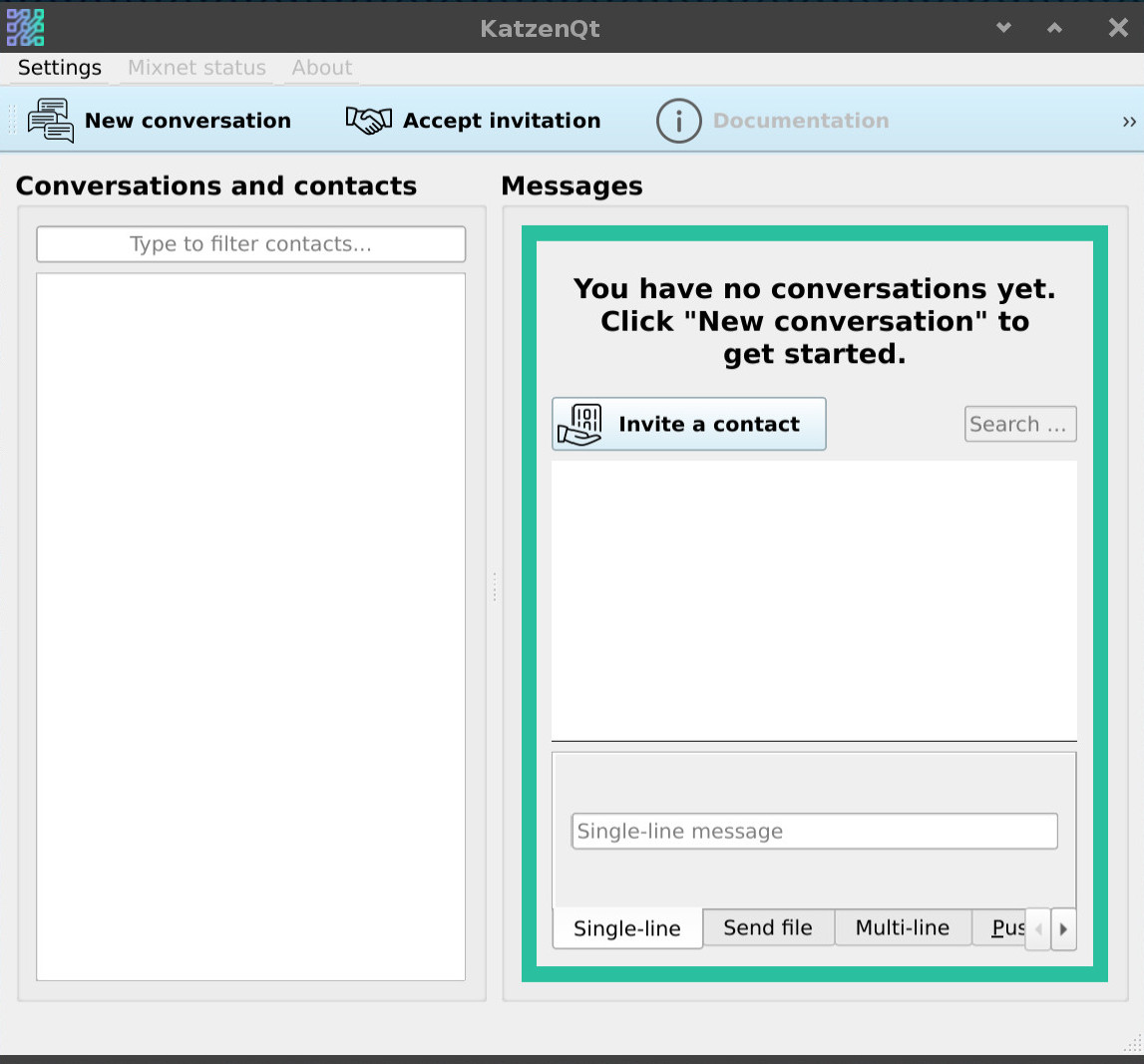
Figure 1. This screen capture shows the elements of the KatzenQT client interface prior to configuration or use.
KatzenQT consists of a menu bar, a toolbar, two panes, and a status bar (not visible).
The Conversations and contacts pane displays existing conversations and the contacts specific to them.
The Messages pane displays the title of the selected conversation (if any), its message log, an Invite a contact button for adding new participants, and a text box near the bottom for typing new messages.
Buttons in the toolbar include New conversation (opening a dialog to configure a conversation), Accept invitation (opening a dialog to accept or refuse an invitation from another user), Documentation (activating, once implemented, the internal help system), and Quit (which shuts down the client).
The tabs at the bottom of the Messages pane allow selection of a communication mode.
| Note |
|---|---|
At present, only text chat works. Grayed out elements in the KatzenQT interface are not yet implemented. |
Despite appearances, KatzenQT's emphasis on anonymity means that familiar terms take on new meanings, particularly the idea of a "contact."
Contact names are arbitrary. Contacts in one conversation are unconnected with contacts in other conversations. Each chat participant can choose a unique name for each conversation.
KatzenQT and Katzenpost operate with no information about the real-world identities behind contacts. There are no e-mail addresses, telephone numbers, postal addresses, or anything similar.
Without phone numbers or email as anchors for identity, KatzenQT users require a real-world encounter to verify who they are and to share cryptographic secrets. This kind of contact bootstrapping occurs out-of-band (OOB), that is, without reliance on the primary communication channel, which is KatzenQT. The concept is similar to the practice of PGP email users who hold in-person key-signing parties to build a web of trust.
The first thing that a new user of KatzenQT must do is create a conversation. This must happen before you can invite contacts or accept invitations.
To create a conversation
Open KatzenQT. Until a conversation has been created, the Messages pane prompts you to create one.
In the toolbar, click the New conversation button.
In the New conversation window, type a name in the Choose conversation name field. This name is how you identify the conversation in your own KatzenQT client. It may differ from what your contact calls their corresponding conversation. Click OK when finished.
In the following screen capture, the New conversation field is being filled out.
Figure 2.
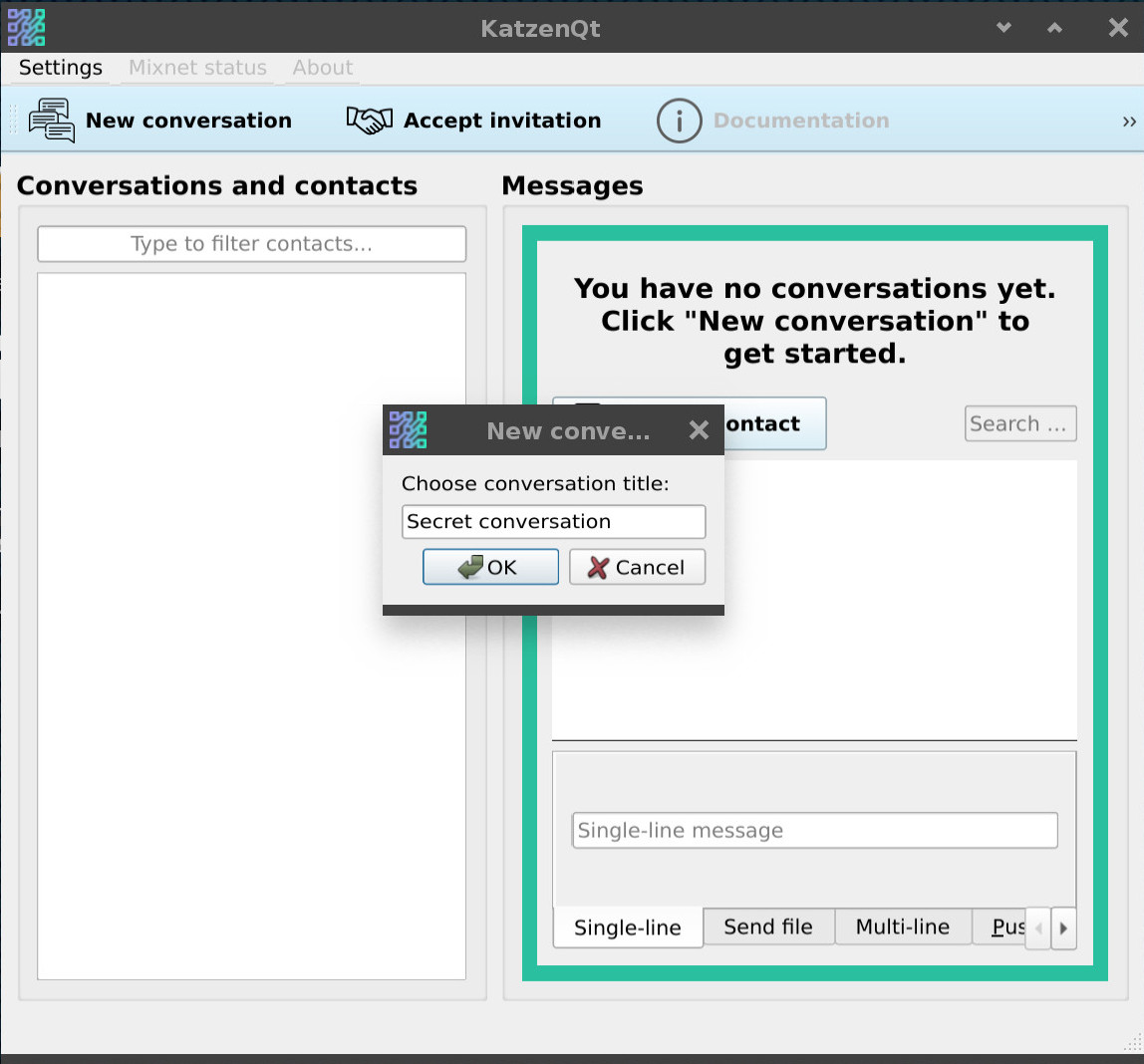
Figure 2. In this example, a user creates a first conversation called My first conversation.
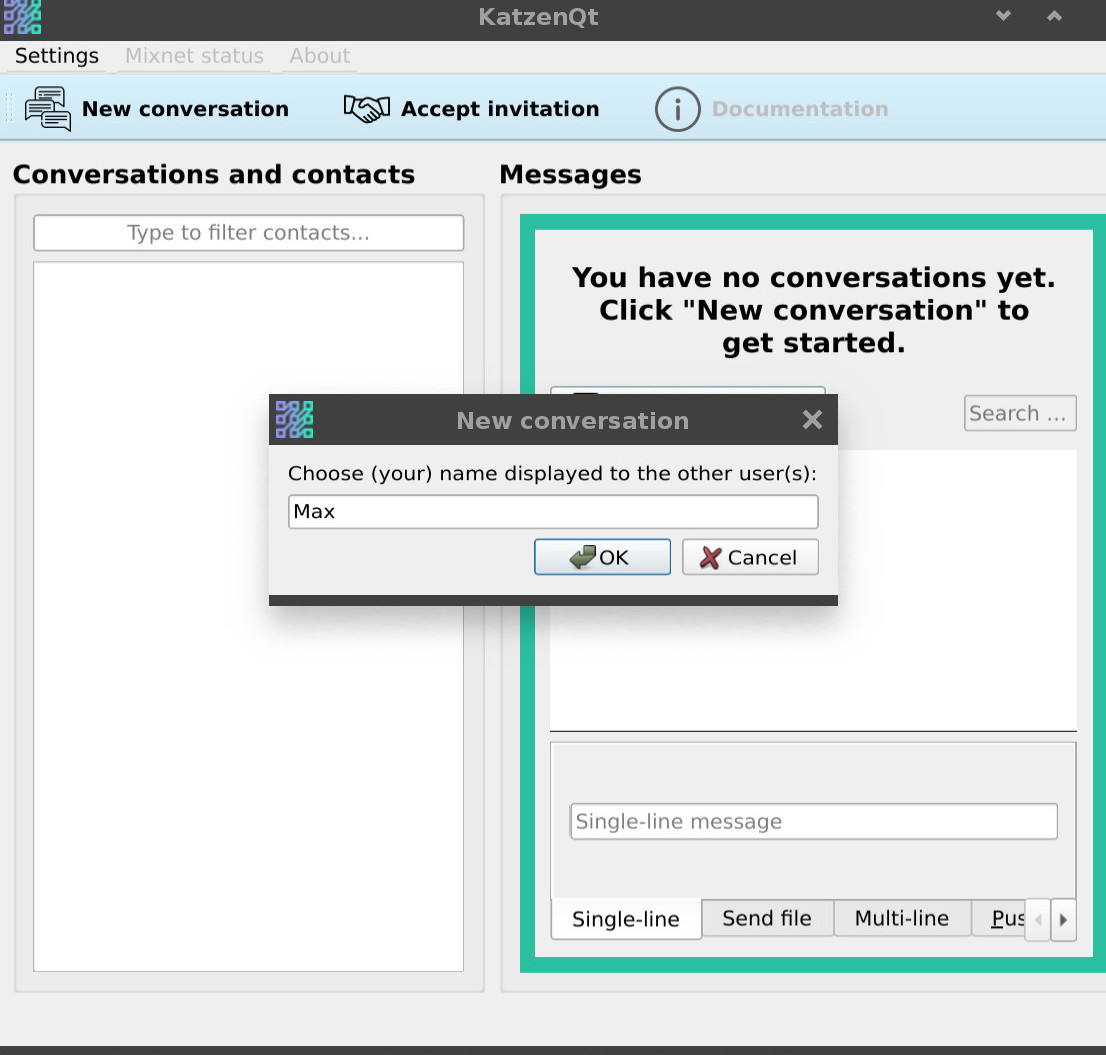
Type a name for yourself in the field labeled Choose (your) name displayed to the other user(s). Your contacts will see this name when they accept your invitation.
The following screen capture shows a name that was typed in by the user.
Click OK when finished.
Now, in the Conversations and contacts pane, the name of your new conversation is displayed along with your display name. In the Messages pane, KatzenQT prints a greeting message.
The final result resembles the following:
Figure 4.
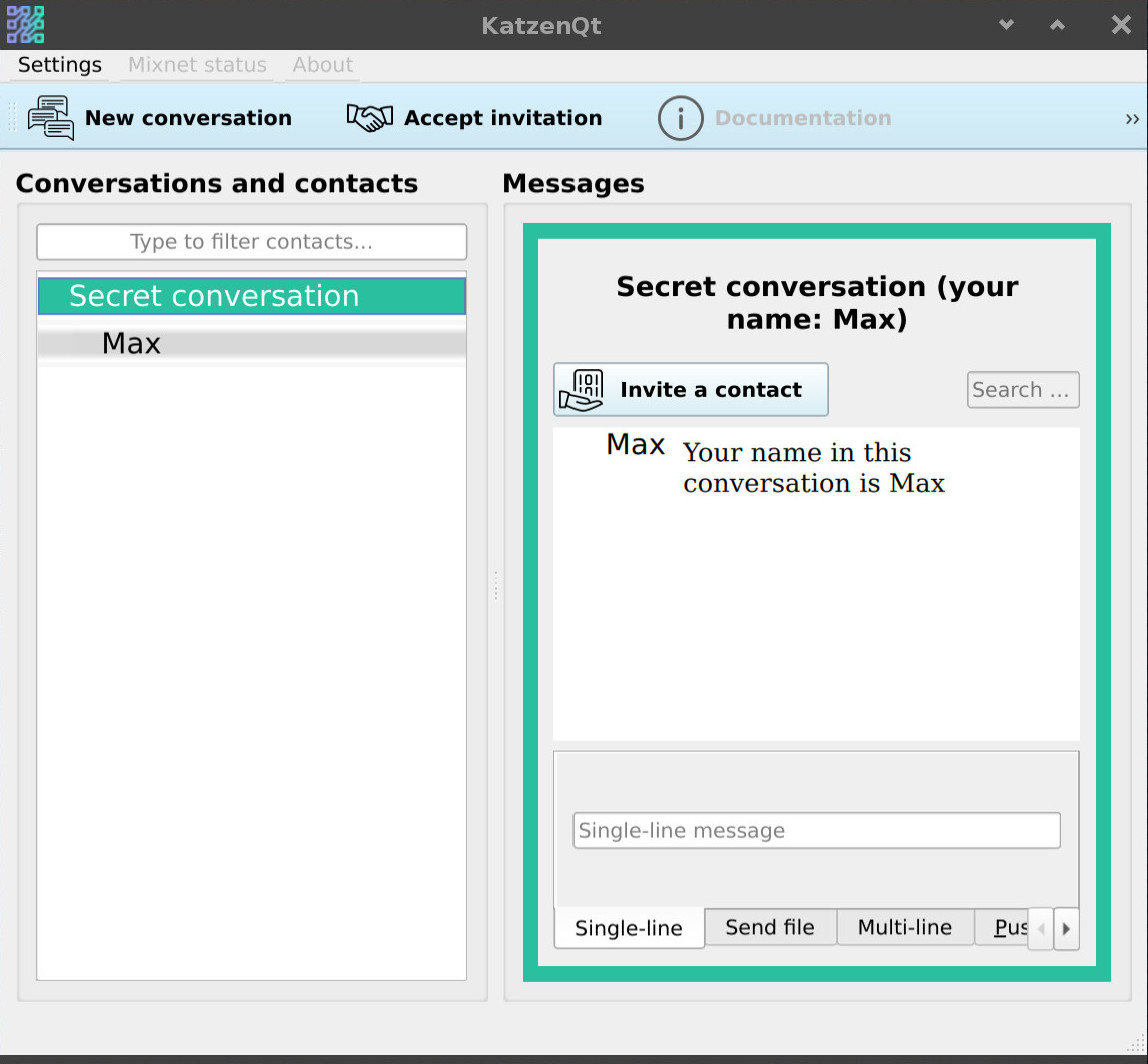
Figure 4. In the Conversations and contacts pane, you can select a conversation. The selected conversation will be displayed in the Messages pane. You can use the Type to filter contacts text box to find a specific contact name and the conversations that contain it.
You can create any number of conversations, each one separated completely from other conversations.
Once you have a created a conversation, you can begin adding contacts to it. As a user of KatzenQT, you have no fixed user name or password; instead, you assign a name of your choosing for each conversation and potentially for each contact.
A user setting up a contact generates an authentication token called a voucher. The voucher is a Base64-encoded string with the following contents:
a display name
a mixnet storage address that doubles as read permission
A user who makes a request for a new contact delivers the voucher out-of-band to one or more recipients, who enter the invitation string into KatzenQT and, by accepting it, send their own addresses and signed read permissions to the first user, who publishes the shared read permissions for all group members to see. When the process is complete, the new contact names display in the list of contacts for each participant in the conversation.
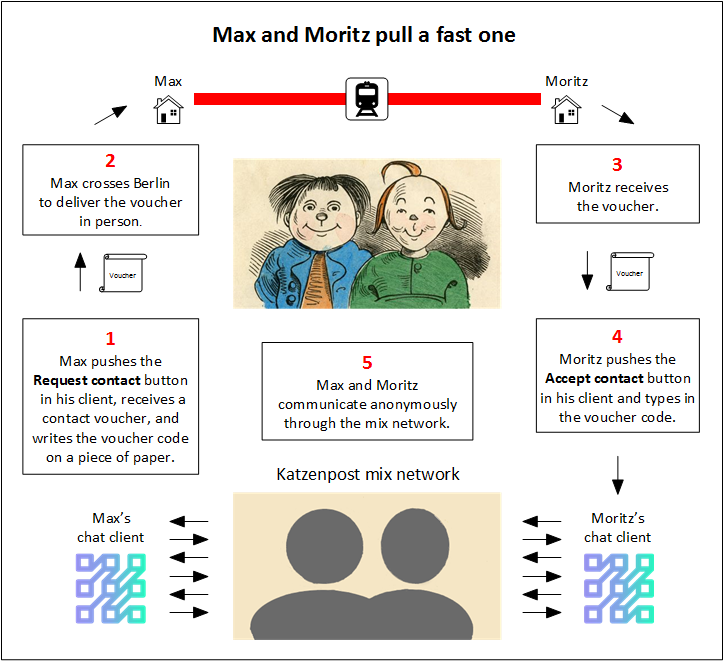
Figure 5. The diagram illustrates two important aspects of Katzenpost and KatzenQT security. First, the initial authentication of a contact is done in a face-to-face meeting rather than electronically. Second, all messaging consists of queries to the mixnet, which operates somewhat as a dead-drop. Max and Moritz post materials there, and authorize each other to read those materials, but there is no direct contact between them after the initial real-world meeting.
![[Important]](file:/home/usr/local/Oxygen_XML_Editor_28/frameworks/docbook/css/img/important.png) | Important |
|---|---|
We recommend writing the invitation string on a piece paper, and presenting this physically to the person or persons you are inviting. The paper bearing the string should be guarded carefully and destroyed after use. |
![[Warning]](file:/home/usr/local/Oxygen_XML_Editor_28/frameworks/docbook/css/img/warning.png) | Warning |
|---|---|
It is possible to simply send your invitation through an alternative electronic channel. However, doing this permanently degrades the Katzenpost anonymity protections to the level of anonymity offered by the channel that you used. |
To request a new contact
Open KatzenQT as described above.
With the desired conversation selected, click Invite a contact in the Messages pane.
In the Invite contact window, type your desired display name in the field labeled Choose (your) name displayed to the other user, then click OK.
The following screen capture shows the Invite contact window with "Max" specified as the issuer.
Figure 5.
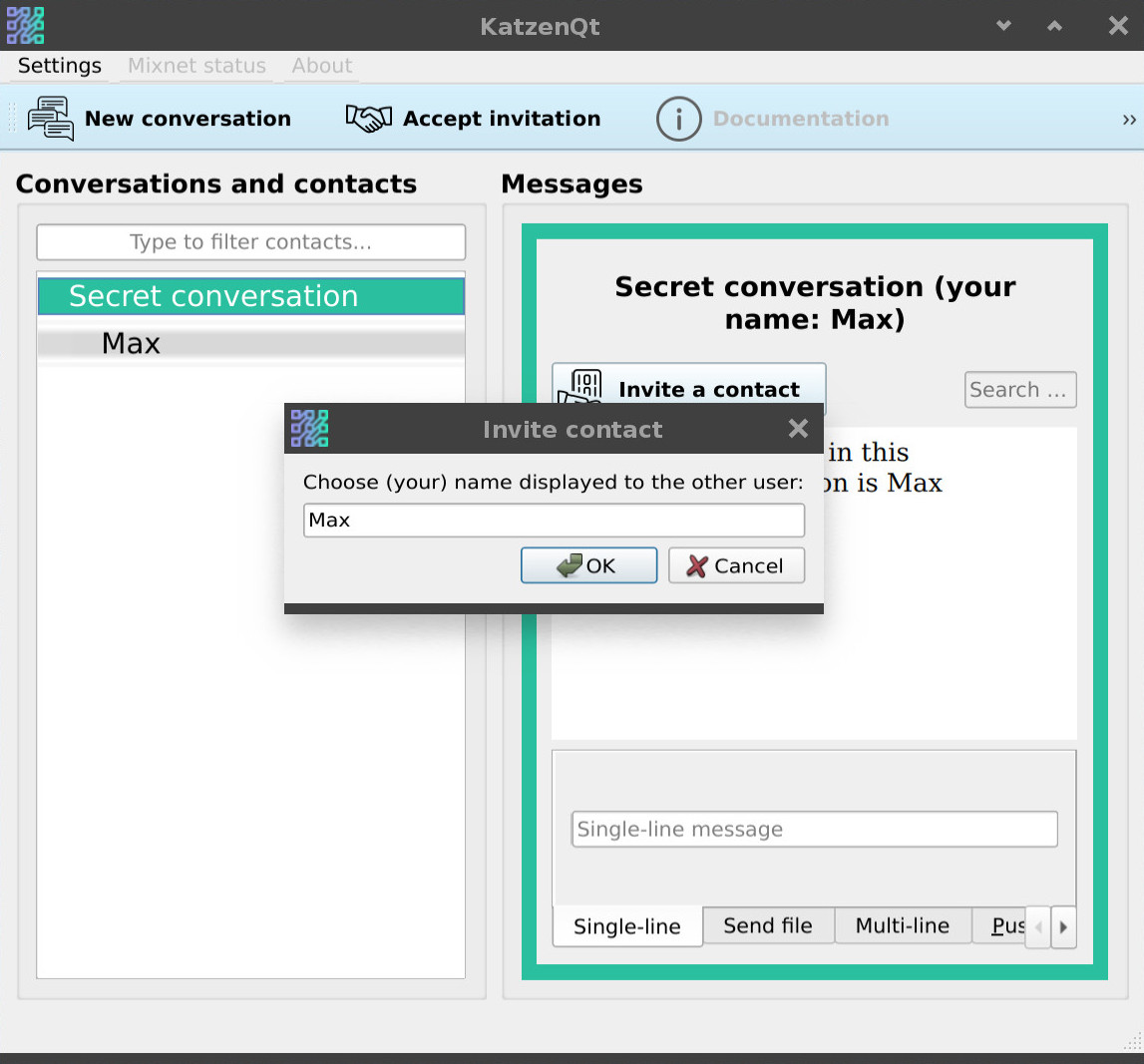
Figure 6. The invitation string has "Max" embedded as its creator, which is helpful to the recipient in the next steps.
A pop-up window displays the Base64 string that was created. Save this string long enough to copy it to paper or save electronically.
Figure 6.
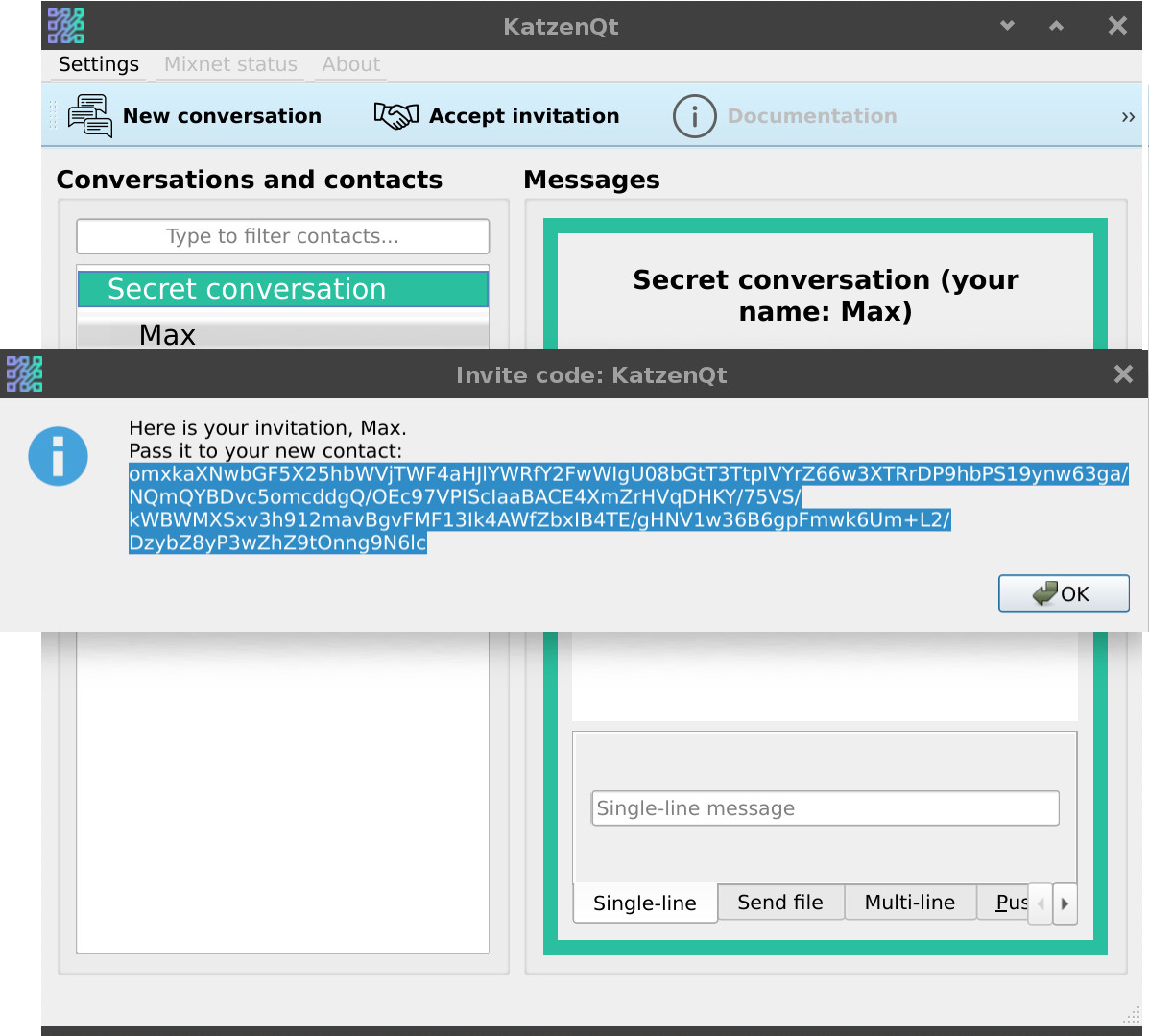
Figure 7. The voucher's Base64 string is highlighted in the illustration. Record it before closing the window.
Complete the invitation process by providing the invitation string out-of-band to your intended contact.
To accept an invitation that you have received
Open KatzenQT. (In the following example, our perspective shifts to Moritz, who is the user receiving Max's invitation.)
In the toolbar, click Accept invitation.
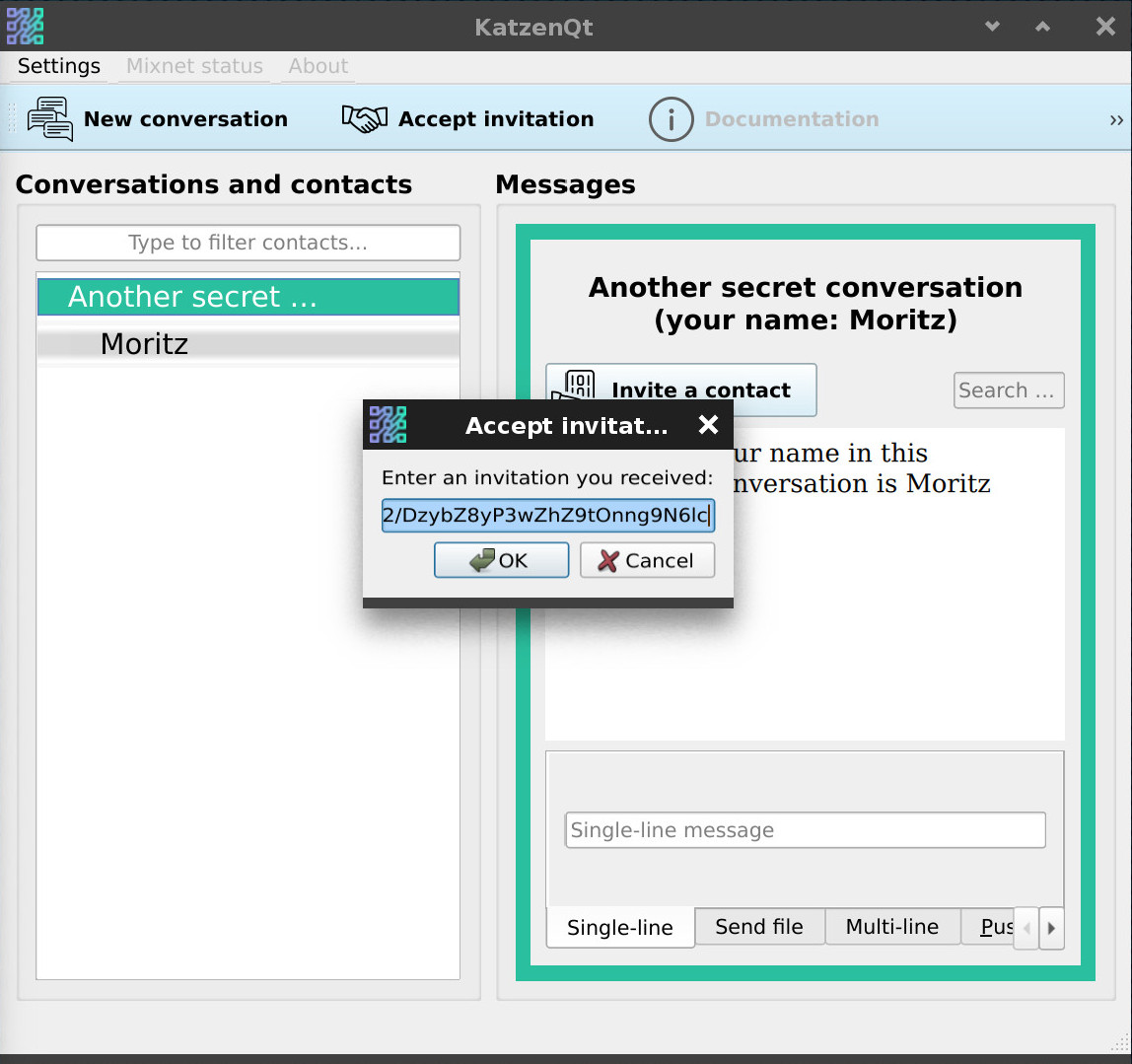
In the Accept invitation window, type or paste the invitation string into the field labeled Enter an invitation you received. Your client should resemble the following:
To approve the display name of the new contact, click Yes. To cancel the acceptance process, click No.
Figure 8.
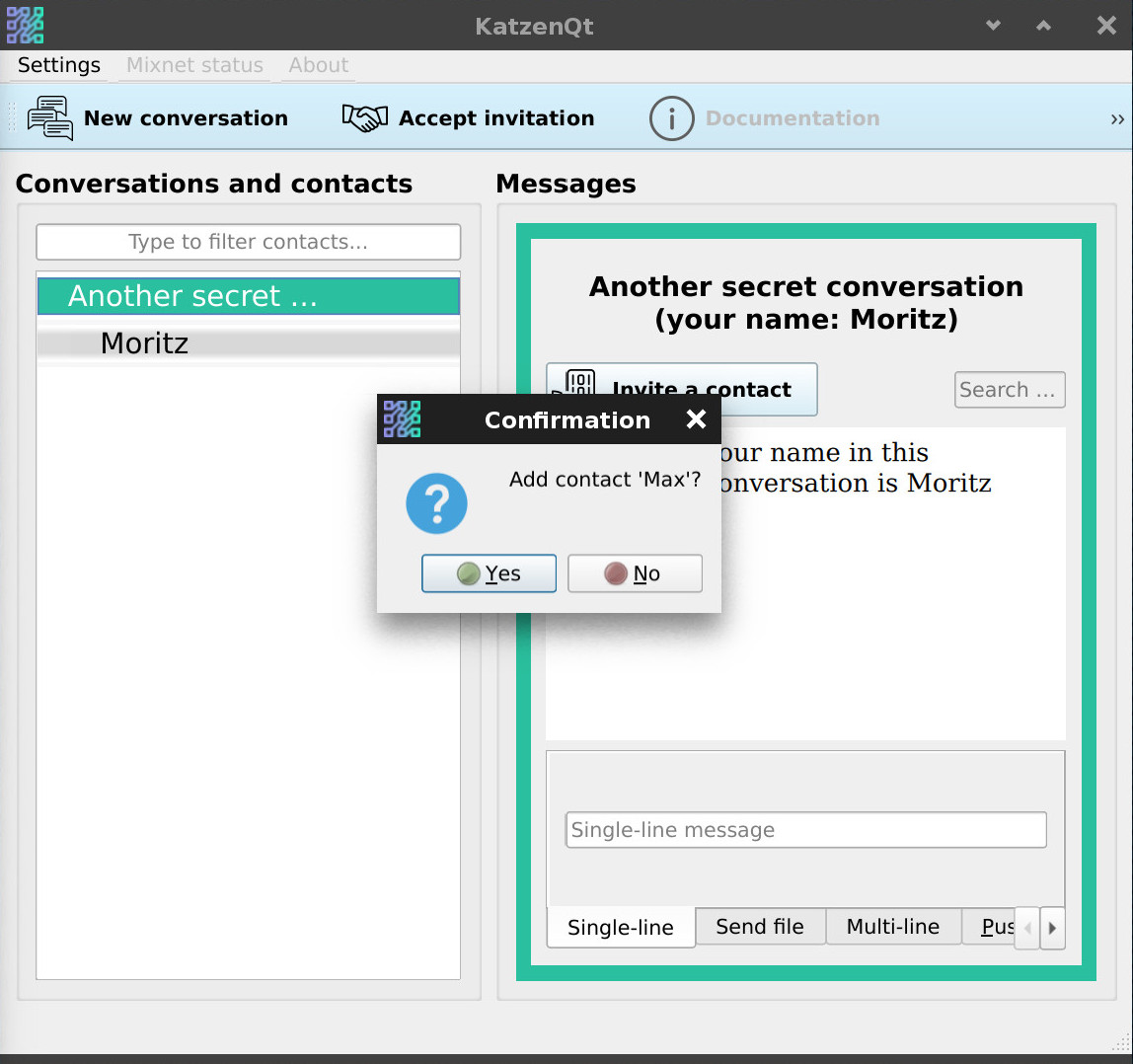
Figure 9. Moritz can either accept or reject Max's display name. Rejecting it cancels the acceptance.
Moritz must start the same procedure in reverse. In his selected conversation, he clicks Invite contact, generates a Base64 string, and conveys it to Max. Max clicks Accept invitation, types the Base64 string into his client, and clicks OK twice.
As shown below, Max and Moritz now appear in each other's contact lists, and they can begin exchanging messages. The procedures described here can be generalized to groups of any size.
| Note |
|---|---|
When you look at the perspectives of Max and Moritz side-by-side, as in Figure 10 below, something strange pops out: Their (shared?) conversation has two different names. This provides a glimpse into the anonymity architecture behind KatzenQT, and is explained in the FAQ:the section called “How do conversations and contacts actually work? ” |
Figure 9.
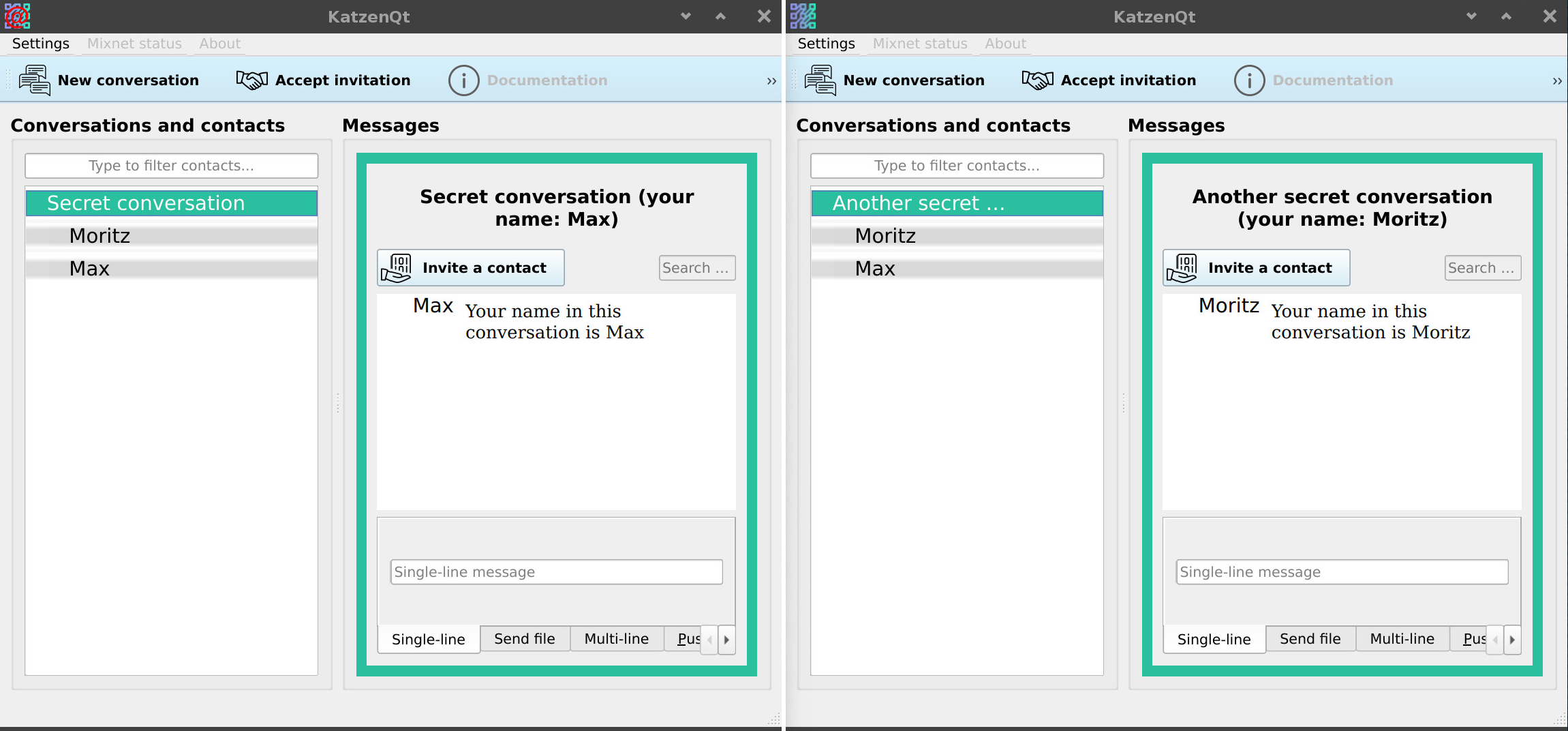
Figure 10. Max and Moritz are shown with their respective conversations and contact lists.
KatzenQT resembles other chat programs in its procedure for exchanging messages. This section provides an example of a conversation between two participants.
Procedure 1. To exchange messages between two contacts
This procedure picks up where the previous section, the section called “Establishing contacts”, left off. The examples show both sides of the Max/Moritz conversation.
Max composes a message to Moritz by typing it in the Single-line message box at the bottom of the Messages pane, as shown in the following screen capture.
Figure 10.
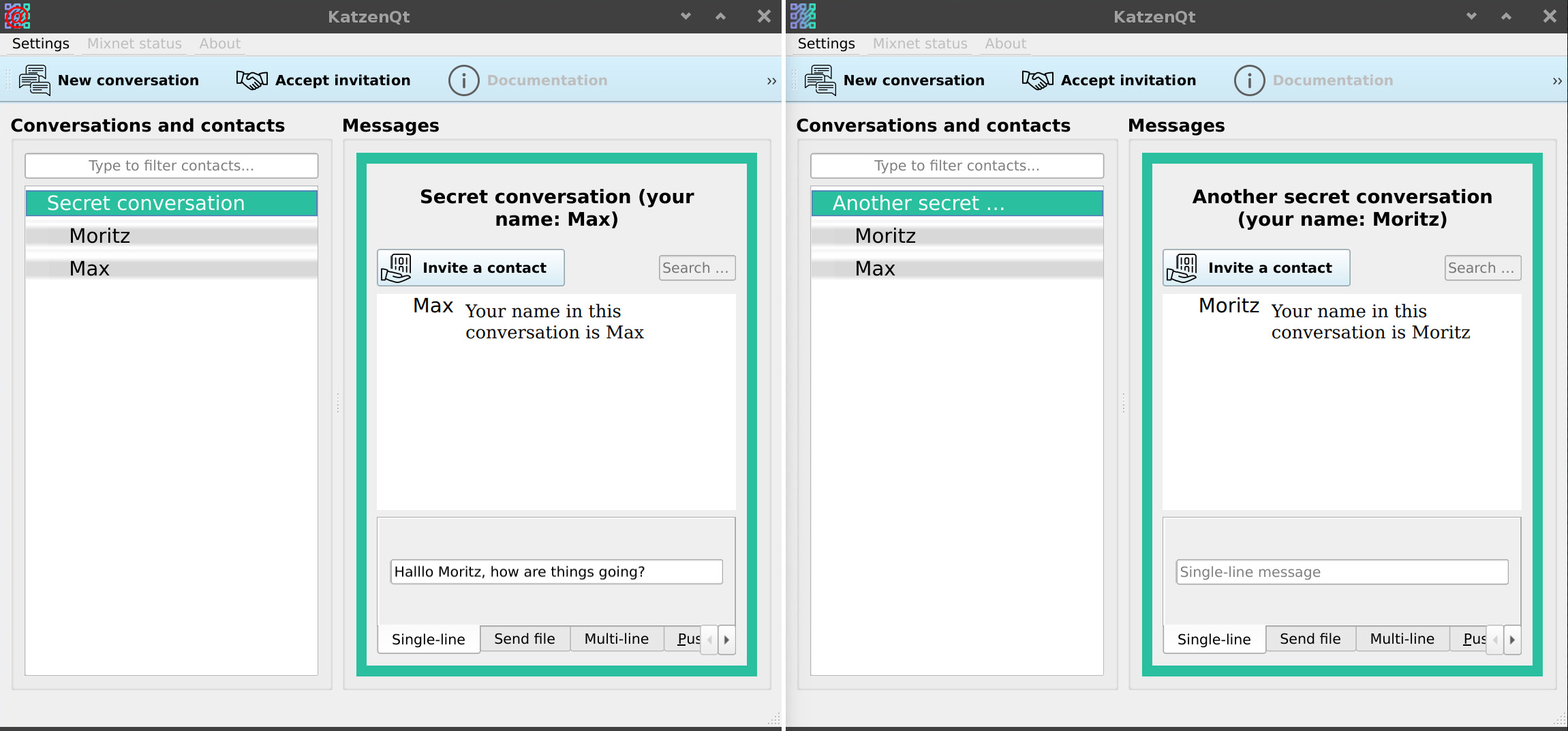
Figure 11. Max can see what conversation he is in by looking at the highlighted conversation name in Conversations and contacts pane, and at the heading in the Messages pane.
When Max is done typing the message, he presses Enter to send it.
Figure 11.
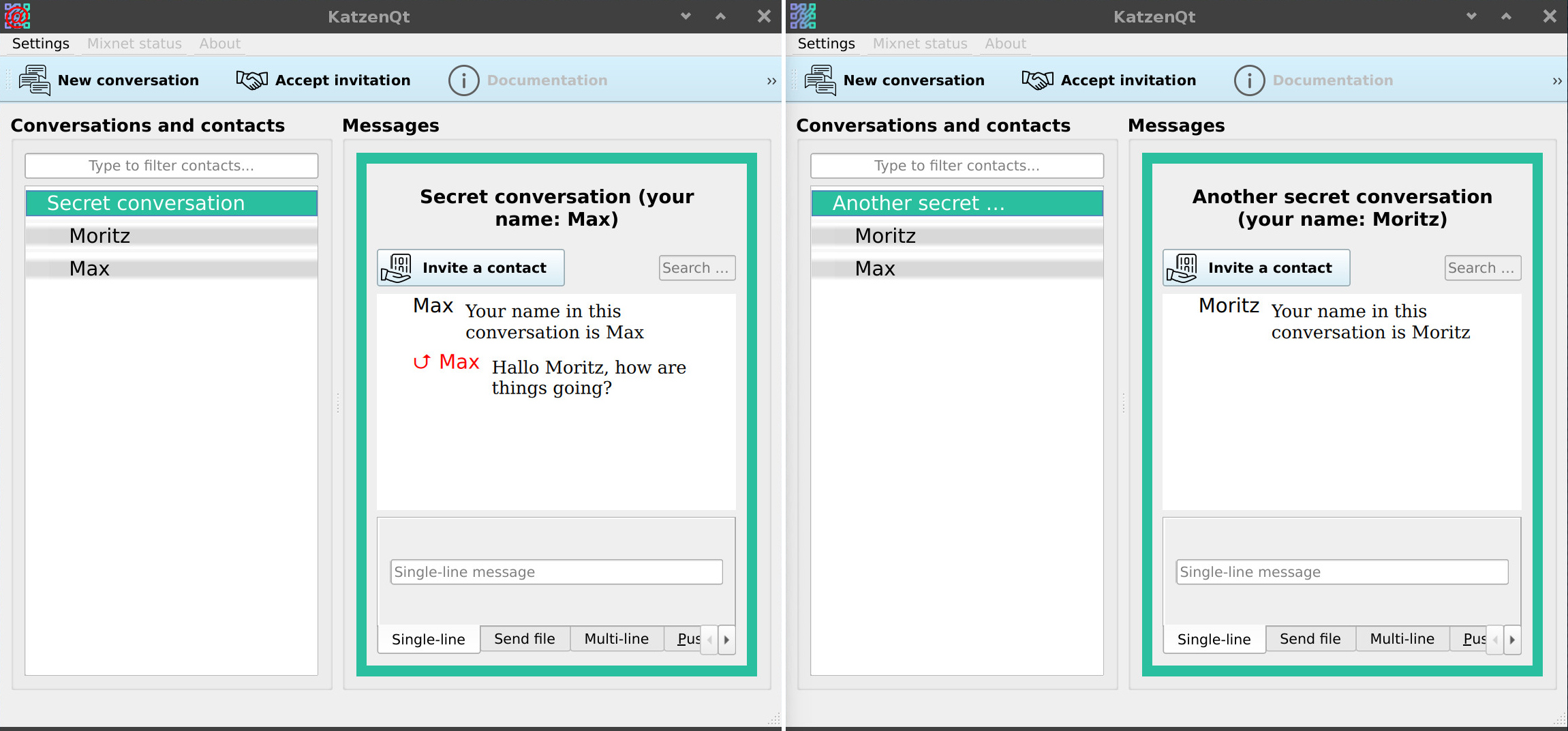
Figure 12. Max's sent message is visible in his Messages pane. The in-flight arrow next to his name indicates that Moritz has not yet received the message, as is apparent in his KatzenQT window.
In the following screen capture, Moritz has received Max's message.
Figure 12.
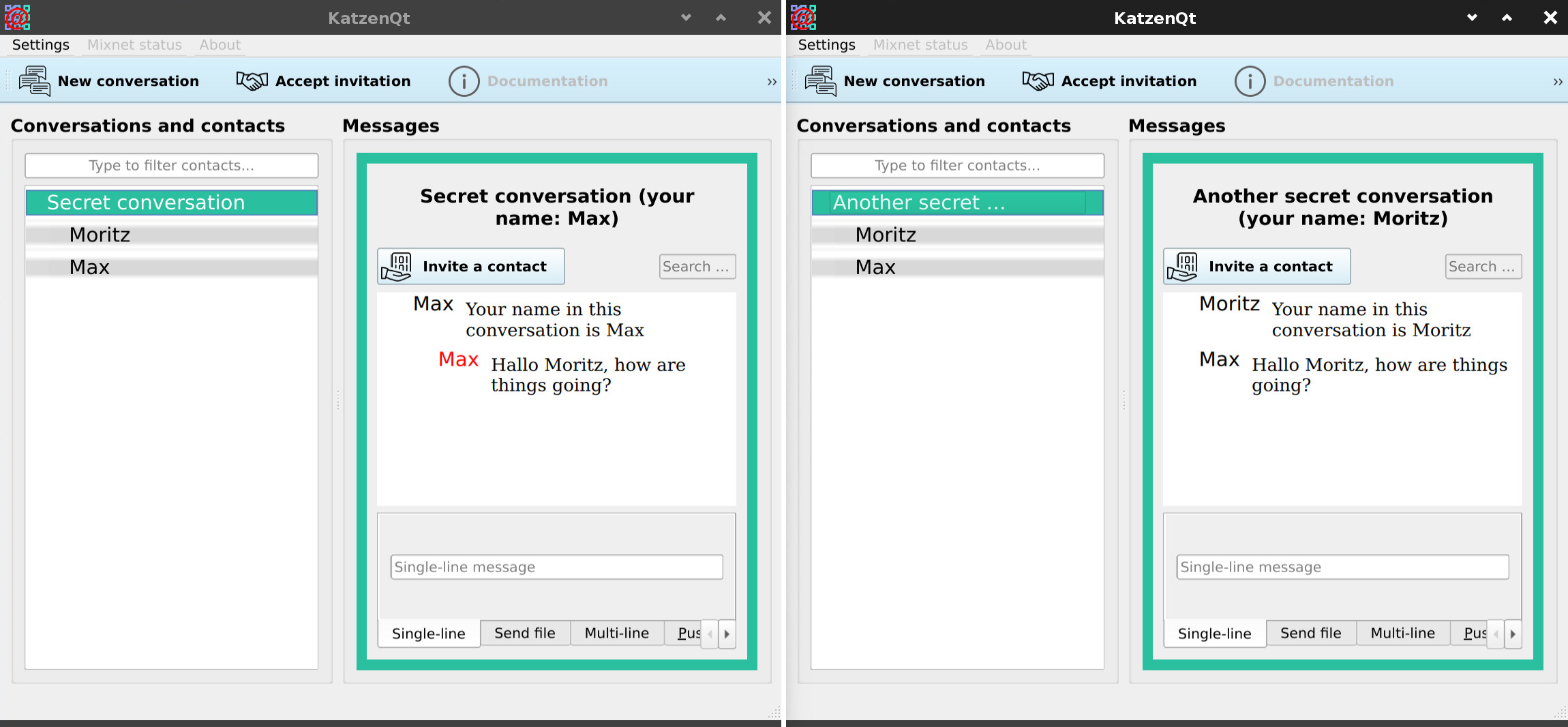
Figure 13. Moritz's KatzenQT window now displays Max's message, and the in-flight arrow has disappeared from Max's window.
In the next screen capture, Moritz types and sends a reply to Max.
Figure 13.
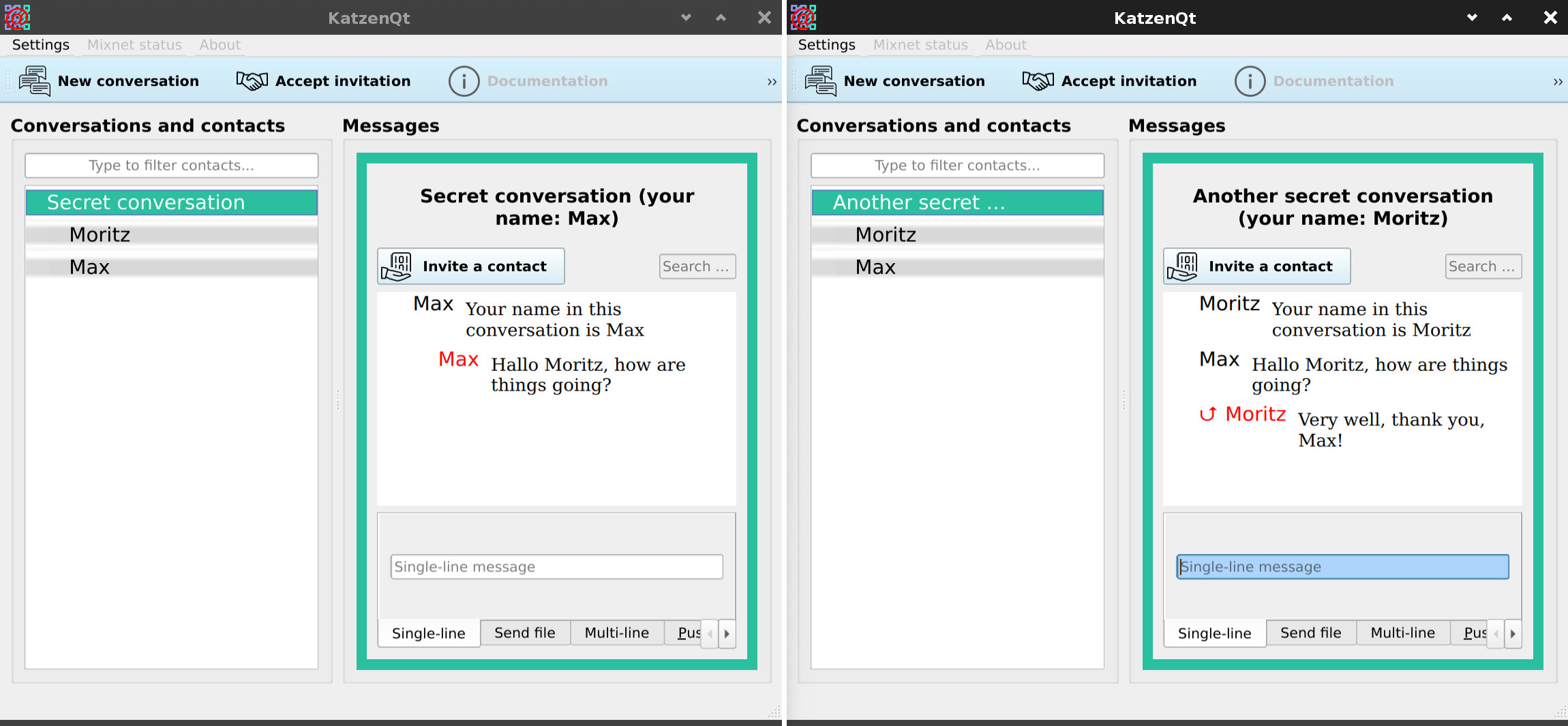
Figure 14. With Moritz's message sent, his Messages pane shows the in-flight arrow pending delivery.
In this last screen capture, Max has received Moritz's reply and they continued to converse.
Figure 14.
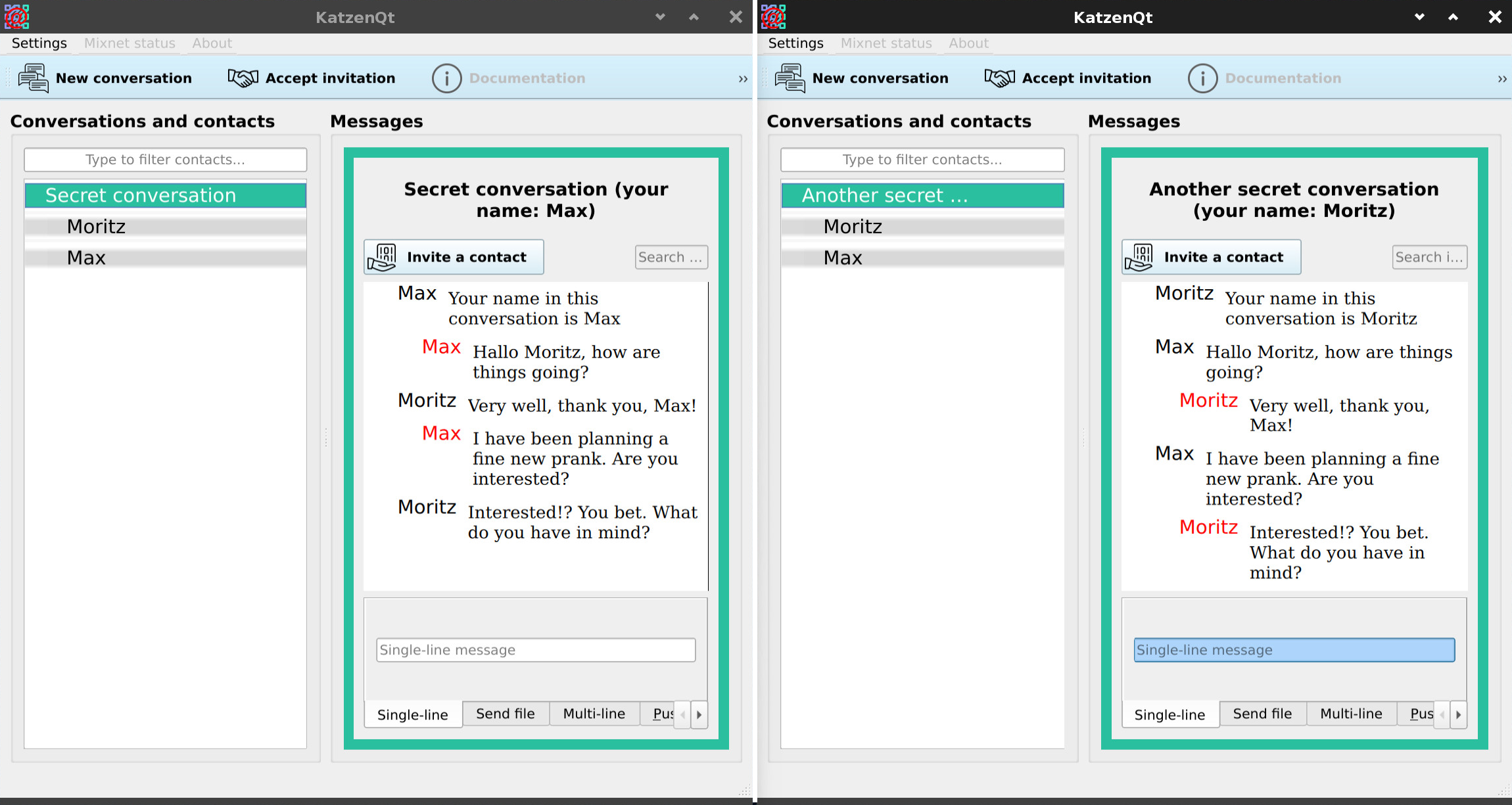
Figure 15. Success! Several messages have been exchanged and the absence of in-flight arrows indicates that no messages are pending at the moment.
Here are some examples of users who require anonymity.
People and groups who are likely to be under surveillance by government entities, whether dishonest bureaucrats, corrupt police forces, or intelligence agencies.
People facing business or government censorship.
Businesses aware of the dangers of leaking internal information to their local and global competitors or to their own or other governments.
Journalists, and anyone who communicates with a journalist.
Whistle-blowers.
Non-profit organizations engaging in advocacy that earns them enemies with powerful surveillance capabilities.
People worried about the utter insecurity of personal data stored in both cloud and on-premises databases that are accessible from the Internet.
People who want to use the Internet but dislike being the raw material that feeds surveillance capitalism.
Not necessarily. Your identity and other metadata may be more interesting to snoops than your data (what you say). Your network of contacts – who is talking to whom – is often the most valuable information about you. Legal protections for metadata are weaker than for communication content. Here are some examples:
Internet businesses routinely harvest and sell sensitive identity data to profit from invasively personalized ads and other sources.
Governments, especially law enforcement, will collect and store any data about your identity, movements, employment, and political views that they can get their hands on, sacrificing the privacy of millions of innocent people to catch a tiny number of suspected criminals.
Actual criminals make daily use of the data they steal from these same businesses and governments, enabling identity theft, credit-card fraud, and extortion.
While the content of telephone communication is shielded by strong limitations on wire-tapping, far weaker rules restrict the use of pen register / trap and trace devices to capture the identities of people engaged in private conversations.
The United States Postal Service routinely photographs and stores the address information of mail passing through its system. The USPS almost never denies requests for this information. from law enforcement and others.
Most dramatically, US intelligence agencies use cell phone metadata (account data and geolocation) to target suspected terrorists for drone and missile attacks. As National Security Agency Director Gen. Michael Hayden famously stated, "We kill people based on metadata."
You do not decide if you have something to hide. The businesses, governments, and individuals snooping into your data decide that.
The KatzenQT and the Katzenpost system devote a great deal of engineering effort to prevent surveillance adversaries from discovering who you are and whom you are talking with. Importantly, after your initial meeting to hand off an invitation, you have no actual contact with your contacts. Instead, users communicate solely with the Katzenpost mixnet, which serves as a dead-drop for each user's messages.
Here is a very sparse summary of how the pieces fit together to provide usable communication despite all of the anonymization and indirection.
Conversations are the main organizing principle in KatzenQT.
Contacts are members of a conversation, and they exist only in the context of a particular conversation. Contacts must have no discoverable relation to real-world identities, or even to repeated instances of themselves. All names are display names. All display names are arbitrary.
Conversations may have any number of contacts, that is, all conversations are groups. One-to-one conversations are groups with exactly two members.
The conversations that you see listed in Conversations and contacts are ones that you created and named. Your contacts see their own conversations that they created and named.
When you create a conversation, you are also creating a message stream. A message stream is an address in the distributed internal storage of the mixnet. It can contain any number of linked, ordered messages posted there by its owner.
You have write permissions to message streams that you created; nobody else does.
You can share read permissions to a message stream that you created with other users. (And vice versa.)
The view of a conversation that you see in your Messages pane is a virtual message log collated by KatzenQT. It is based on read permissions that you and your contacts have mutually shared in this specific context. This is how you can all see the same virtual log of messages when you are each looking at a different conversation.
The OOB invitation is the first step in guaranteeing anonymity in the face of electronic surveillance. It is explicitly not electronic. OOB is a solution to a difficult and fundamental problem of encrypted communications: key exchange. A real-world solution recommends itself because almost no electronic solution protects anonymity.
The following diagram details the data exchanges involved in setting up contacts. For more information, see Katzenpost Group Chat Design.
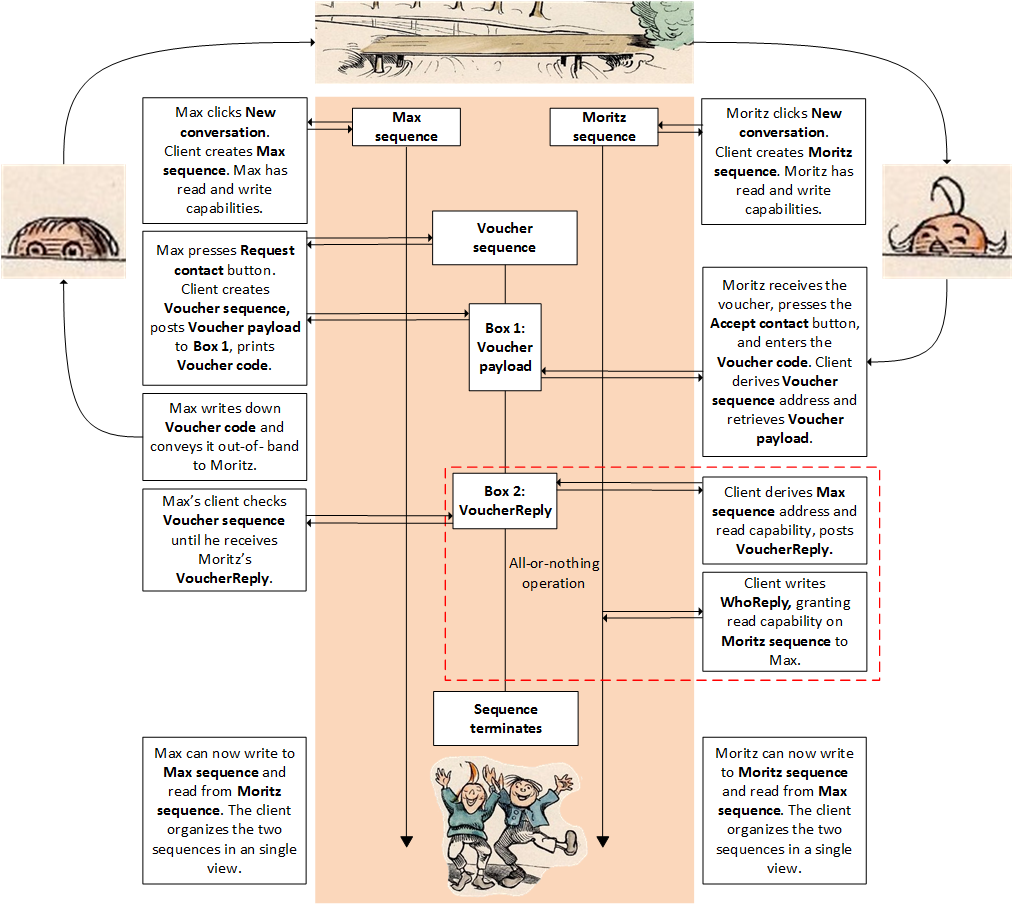
Figure 16. This diagram illustrates how KatzenQT (and its operators, Max and Moritz) interact with the Katzenpost mix network. The most distinctive features of this architecture are the initial out-of-band step to authenticate a user and the dead-drop structure that allows subsequent electronic communication that is neither direct nor persistent.
Mixnet-based communications have high latency by design. This has little impact on low-bandwidth text communications, but it is very likely disqualifying for video. Therefore we do not plan to offer video chat. Audio, however, can be more readily compressed and optimized than video, and we do plan to offer video chat in the future. For more information see Audio Engineering Considerations for a Modern Mixnet.
Let's take "this" as meaning end-to-end encryption and metadata minimization. The answer depends on the jurisdiction and the political weather. Countries such as China and Iran that attempt to exert complete and ruthless control over citizens' communication would probably forbid and block KatzenQT just as they do Signal and Tor, with a full range of possible punishments for offenders. However, Western democracies also enforce comprehensive surveillance over their citizens, particularly as a tool for law enforcement or flexibly defined "national security." The United States, the United Kingdom, and members of the European Union try constantly to expand legal surveillance and to pass laws mandating backdoors in encrypted devices, so far being thwarted either by public advocacy or by the commercial self-interest of technology vendors. Users of surveillance-resistant communication tools must understand the laws that apply to them, keep in mind the ways that those laws are stretched and broken by corrupt police, and protect themselves appropriately. If you plan to violate your local laws while trusting in clever technology to keep you safe, remember that you must make excellent technology choices, use the tools perfectly, maintain operational security worthy of a clandestine agent, and have very good luck. In a genuinely threatening environment, the wisest path is often to avoid technological solutions altogether.
Katzenpost was created by a team of programmers, cryptographers, mathematicians, academics, tech industry veterans, and privacy advocates. Our current core contributors and past contributors are listed at Katzenpost Team, and you can see who has been doing what by visiting our GitHub site.